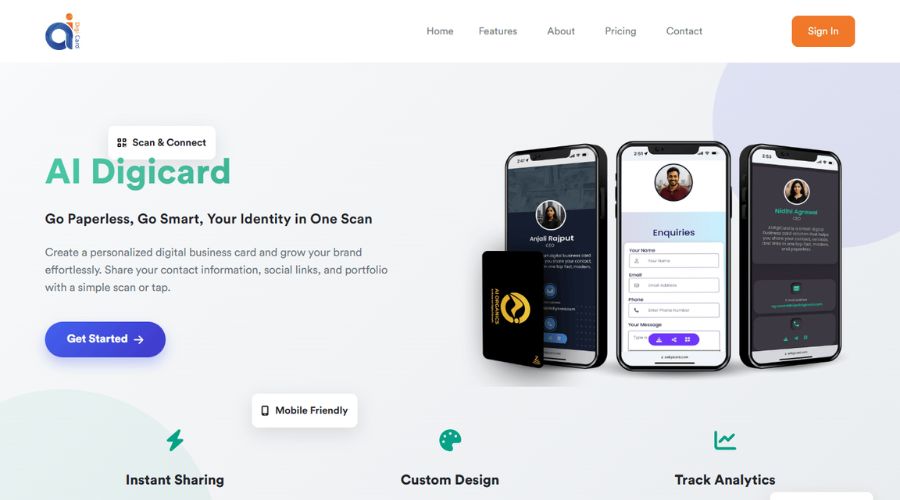
This documentation will help you understand how to create an account, manage your subscription, and use every feature available inside the AiDigiCard dashboard.
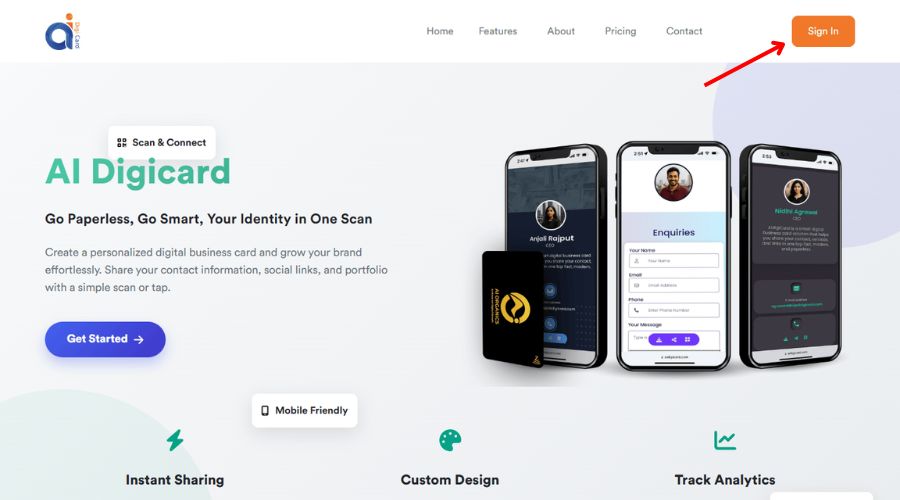
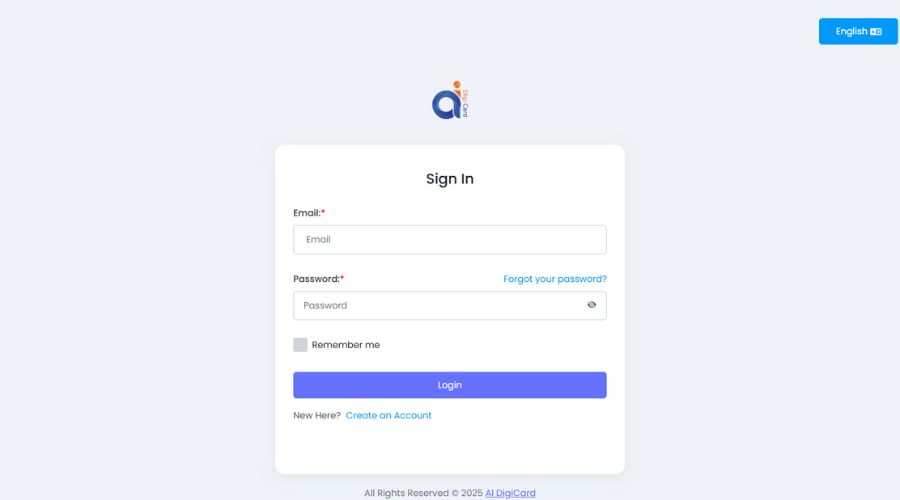
Click on the Sign In button located on the homepage.
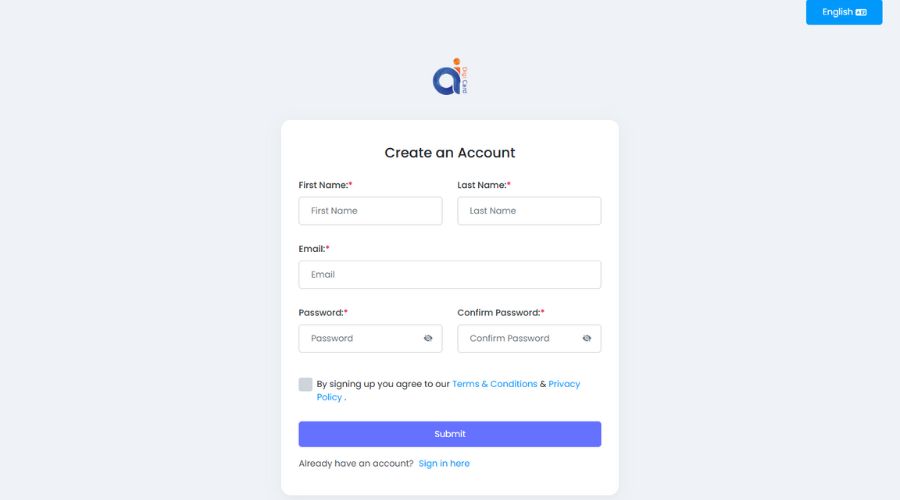
1. Click Create an Account
2. Enter the following details:
3. Select the checkbox: "By signing up you agree to our Terms & Conditions & Privacy Policy."
4. Click Submit
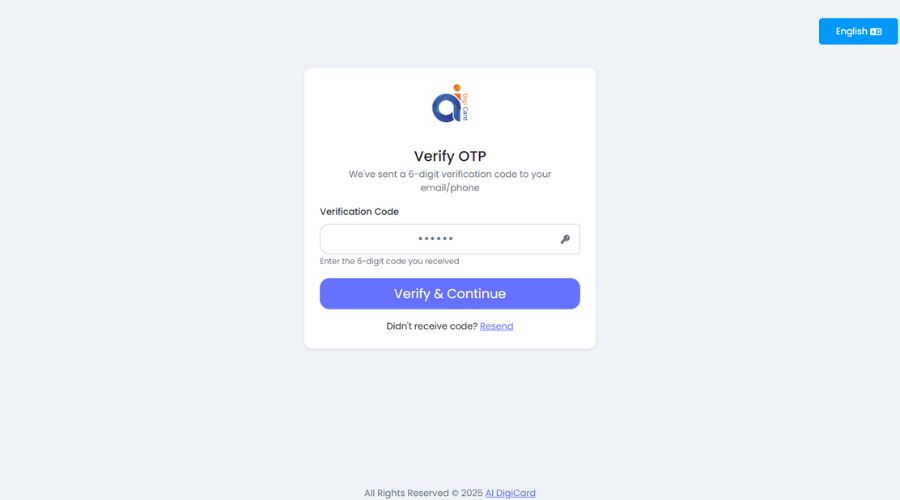
You will receive an email from: aidigicard@aidigicard.com containing your One-Time Password (OTP).
Enter the OTP on the verification page.
After verification, you will be redirected to the signin page.
Enter your email and password to access your dashboard.
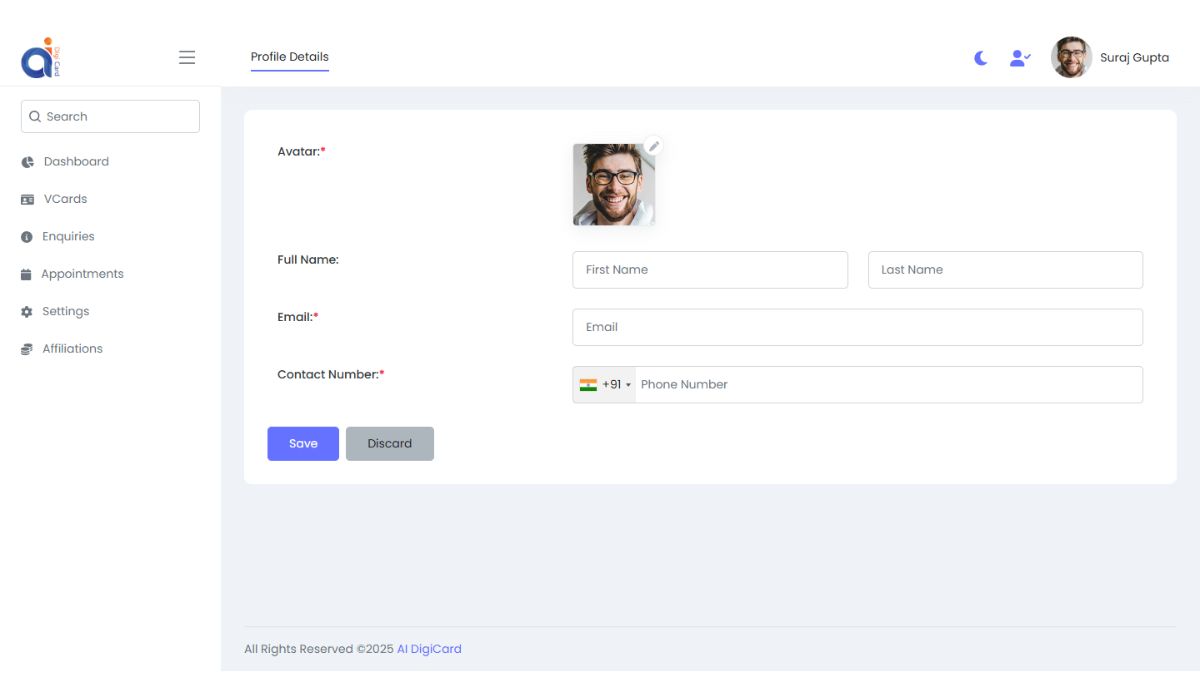
Click your profile image on the top-right to access the following options:
Here you can:
Inside this section you can view and upgrade your subscription.
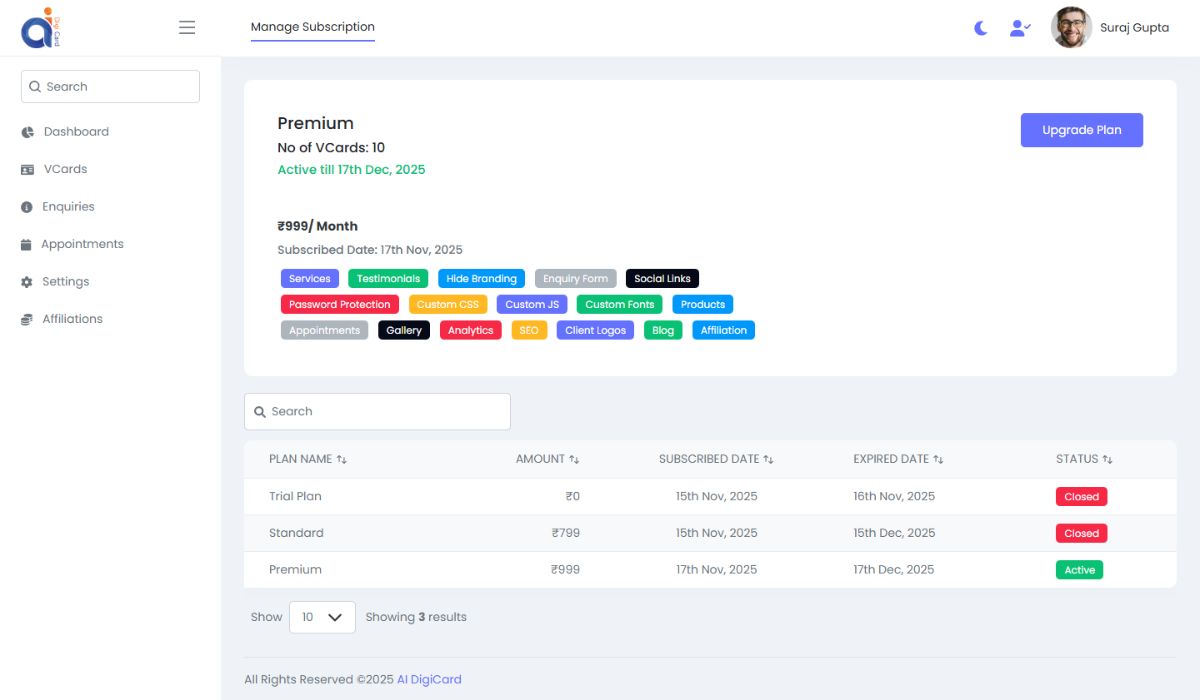
| Plan Price | Cards Included | NFC Availability |
|---|---|---|
| ₹199 | 1 VCard | NFC available at extra cost |
| ₹799 | 5 VCards | NFC available at extra cost |
| ₹999 | 10 VCards | NFC available at extra cost |
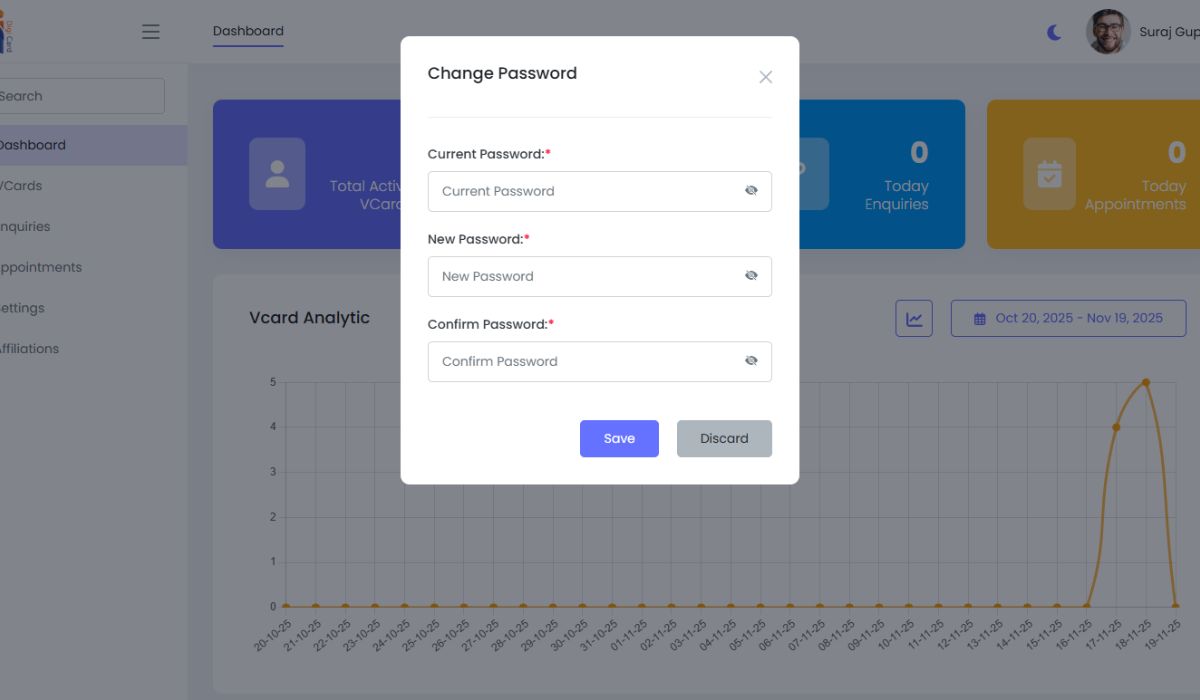
Use this option to update your account password.
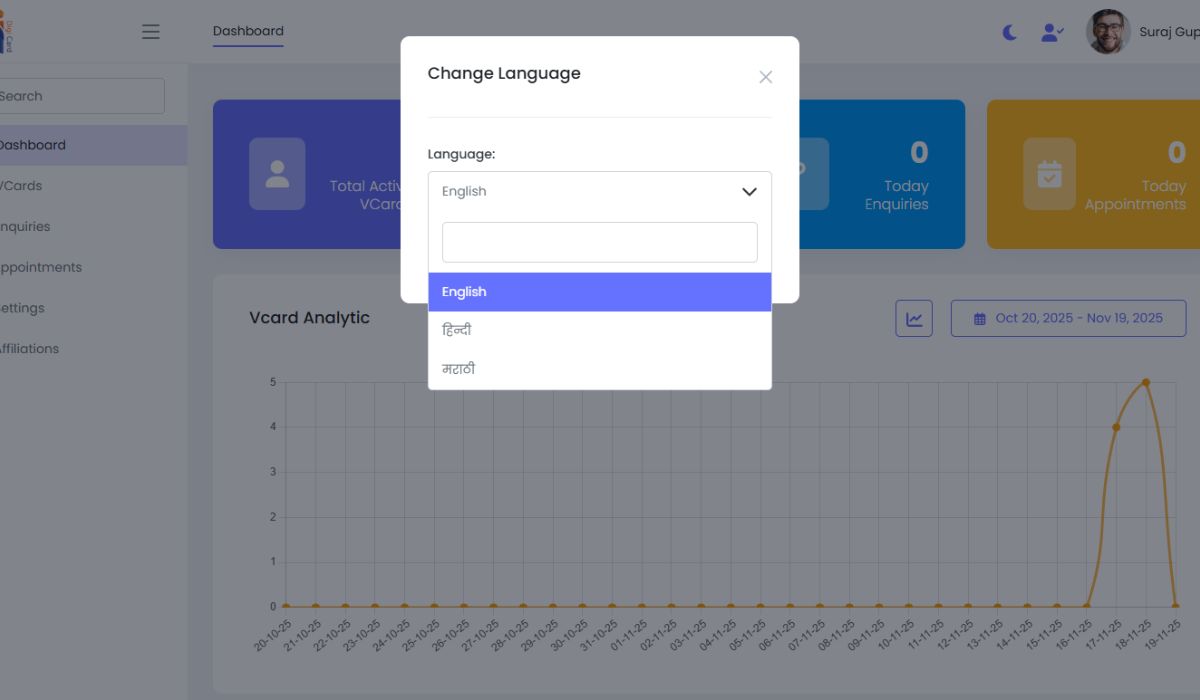
The website supports 3 languages:
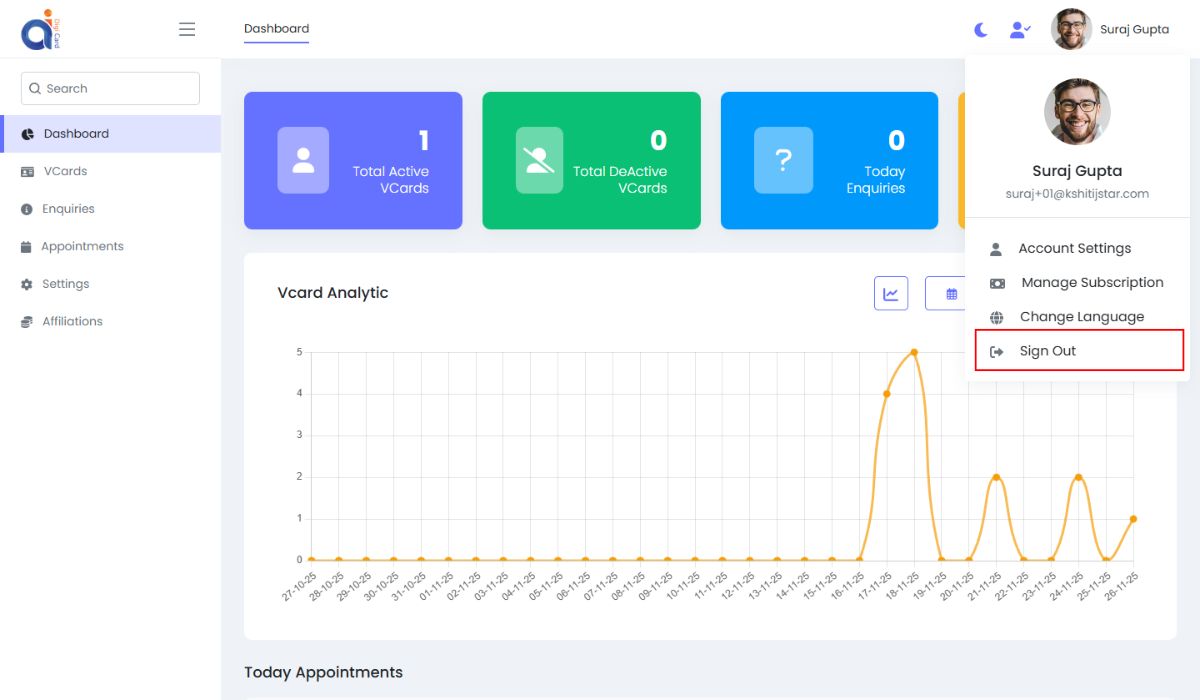
Logs you out and returns you to the login page.
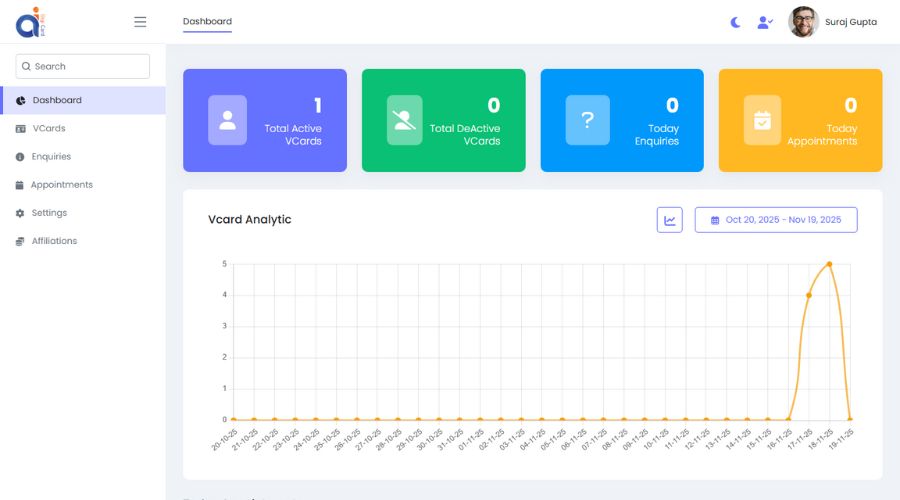
Dashboard URL: https://aidigicard.com/admin/dashboard
The dashboard displays 6 key cards:
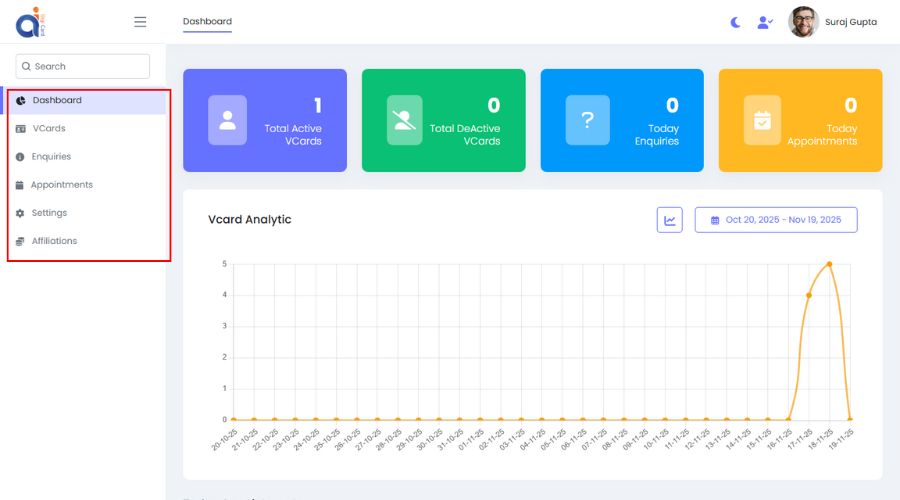
Go to: VCards → New VCard
• Enter your desired URL name (example: yourname)
• If not available, try variations like:
• Or use the random URL generator on the right side.
Example auto-generated URLs:
Your VCard URL will look like: https://aidigicard.com/iabbhz87sacl
If You Selected Custom URL So this Look Like: https://aidigicard.com/aiorganics
Click Save to proceed.
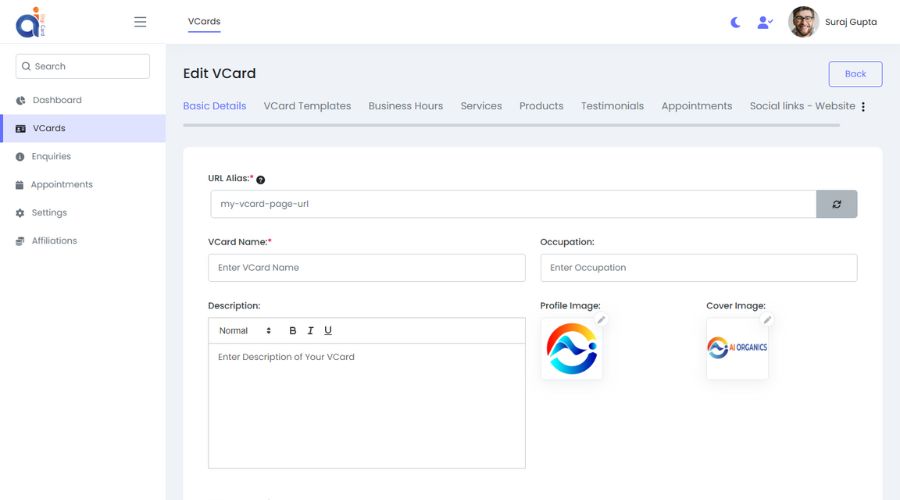
Once created, you can update VCard details through multiple sections:
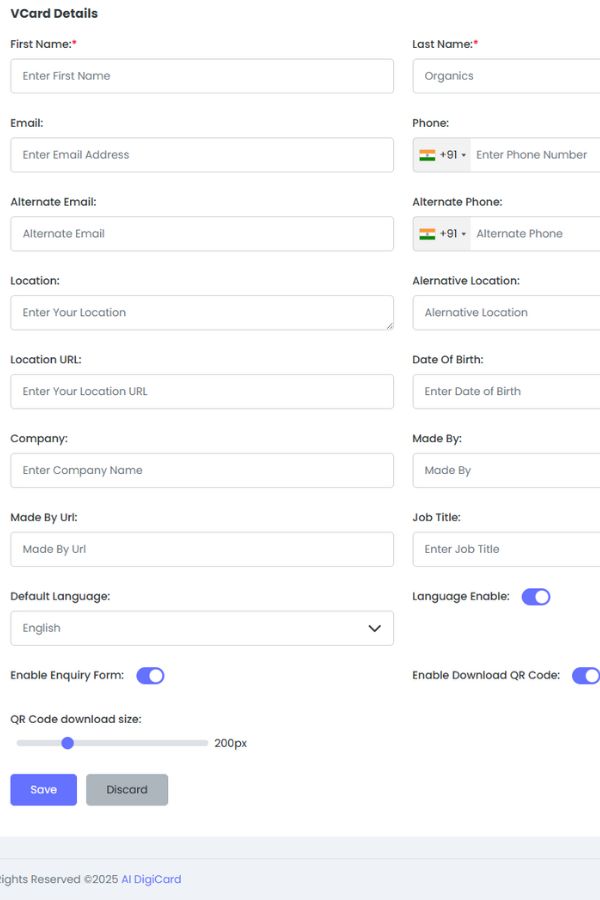
Enter all your main business and personal details.
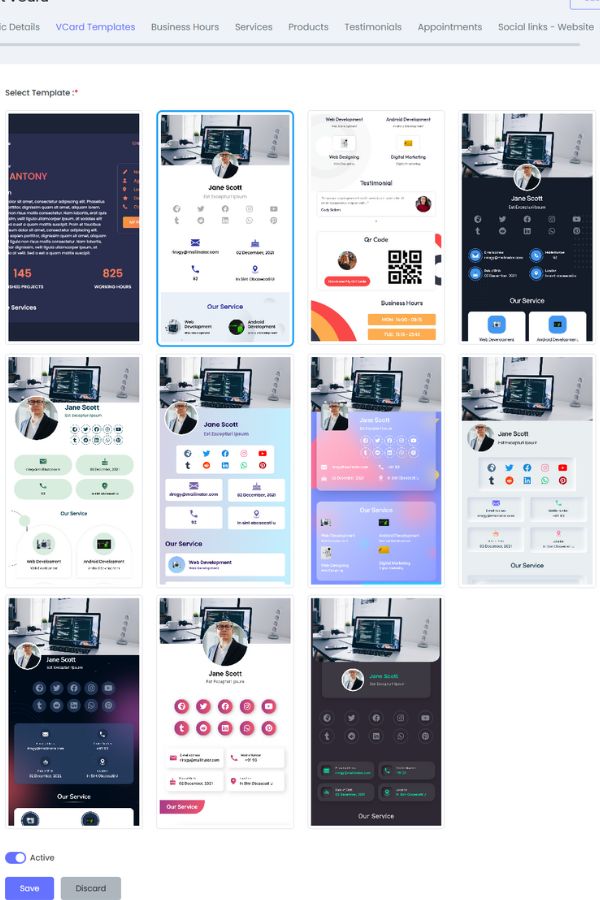
• Multiple templates are available
• Preview and select the one you prefer
• Scroll down and click Save
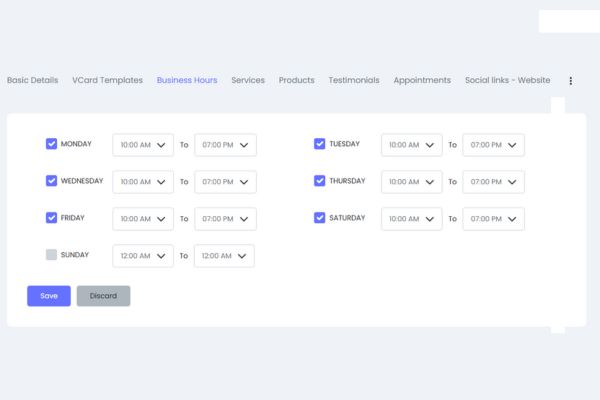
• Set your working hours for each day
• Click Save when done
Add your business services:
• Click Add Service
• Fill in service details
• Upload icons/images
• Save to update your VCard
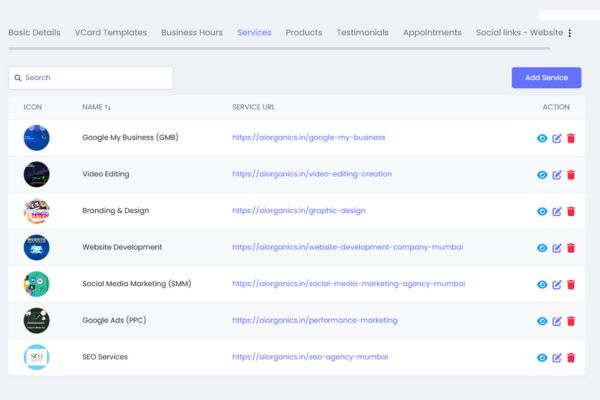
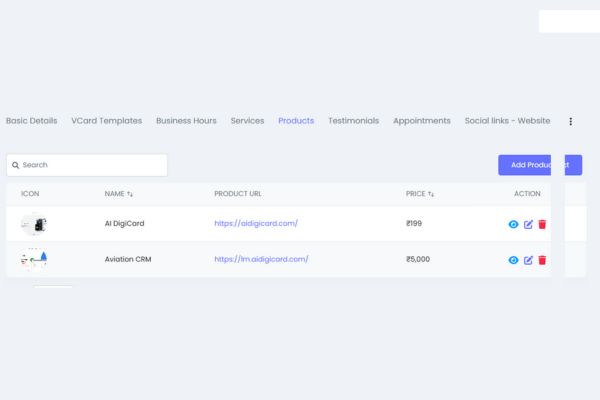
Add your business products:
• Add product name, description, price, images
• Save changes
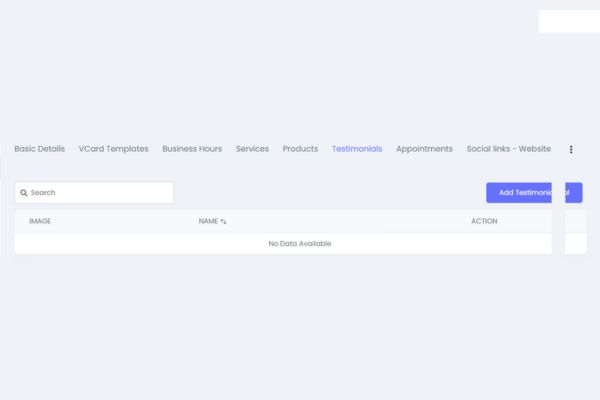
Add customer feedback:
• Click Add Testimonial
• Upload customer photo (optional)
• Enter name, rating, and review
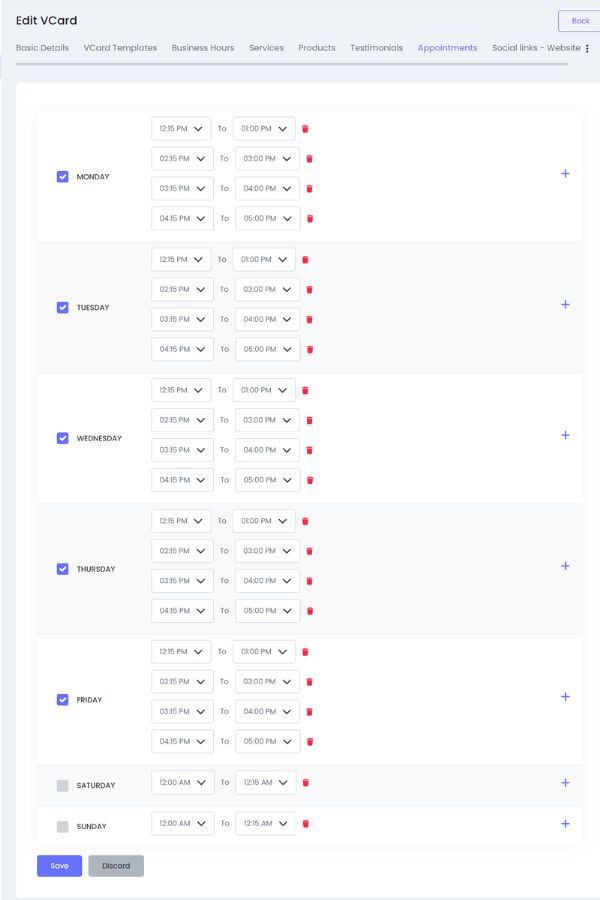
Set up appointment slots:
• Choose available timings
• Click + to add multiple slots per day
• Save
Here you can add:
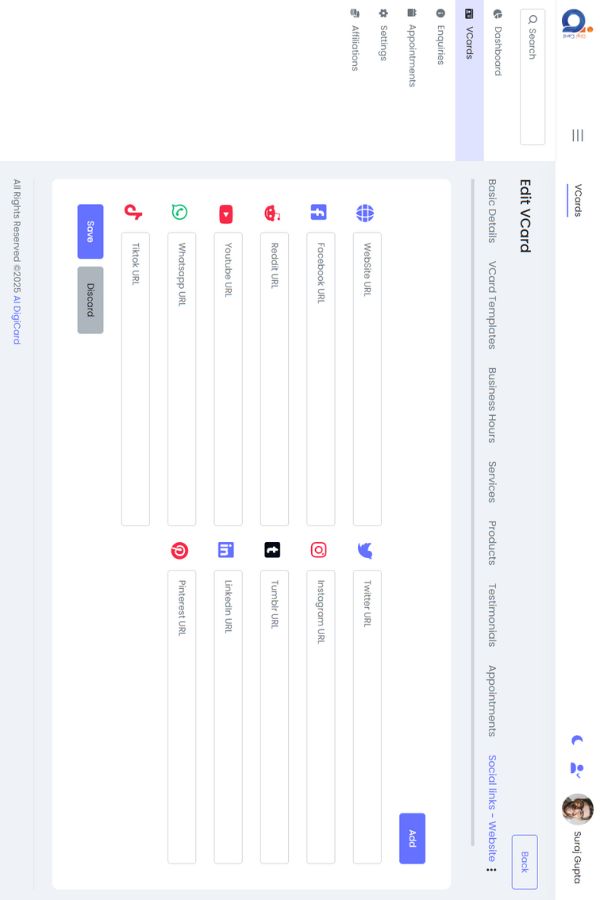
Includes:
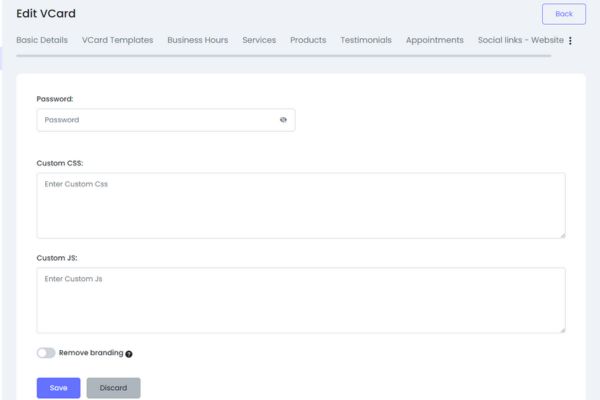
Choose your preferred font style for your VCard.

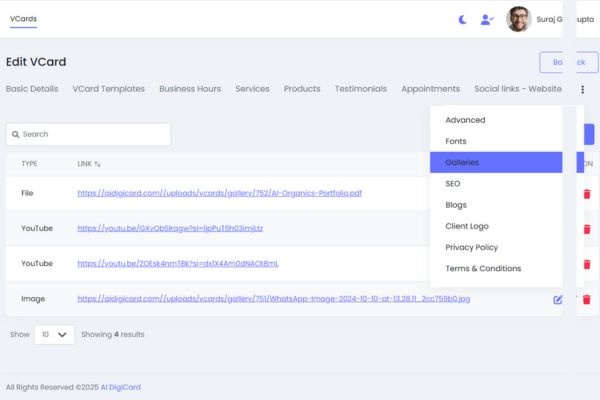
Upload:
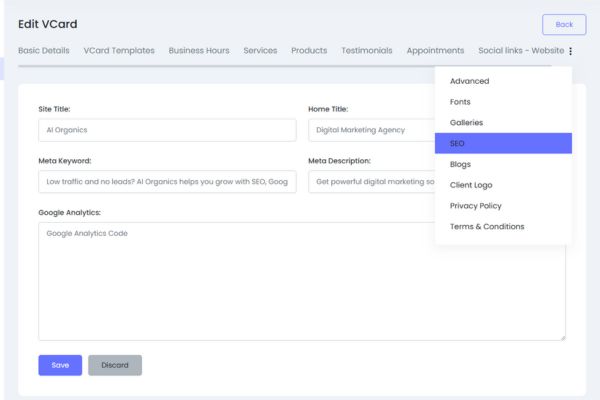
Add SEO information:
Improves Google ranking for your digital card.
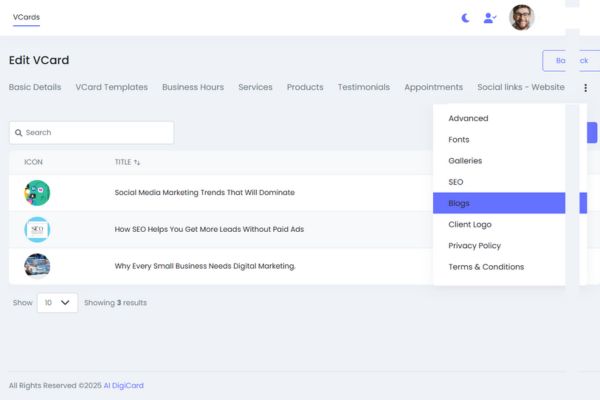
Add your own blog posts to your VCard.
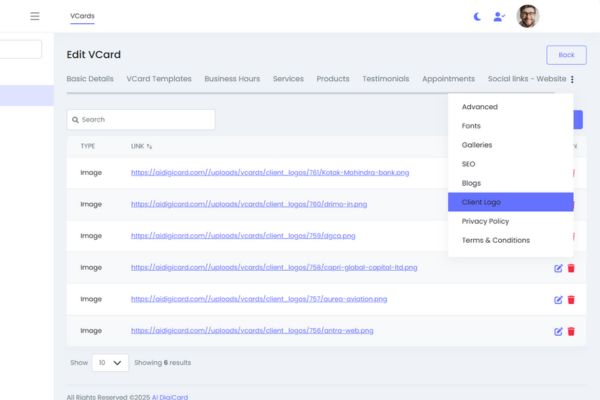
Upload client logos for your portfolio.
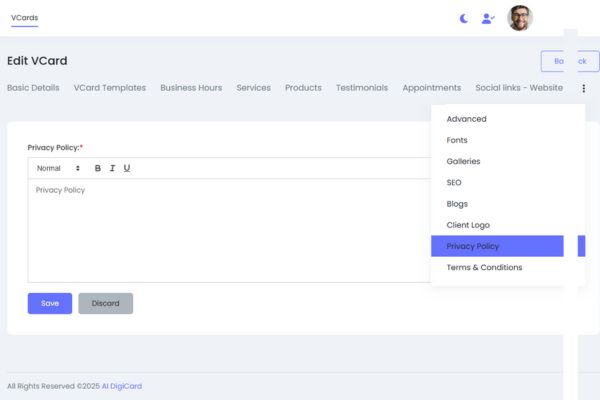
Add your privacy policy content.
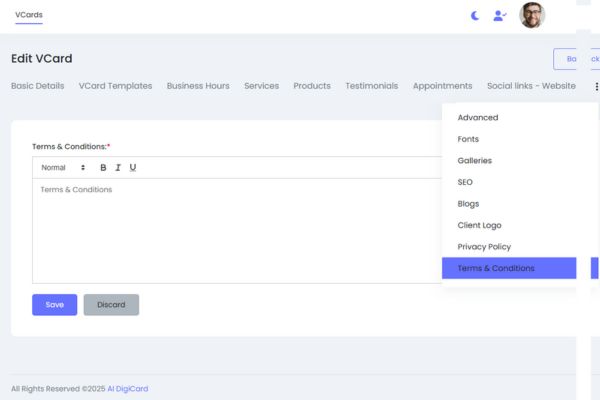
Add your T&C for customers.
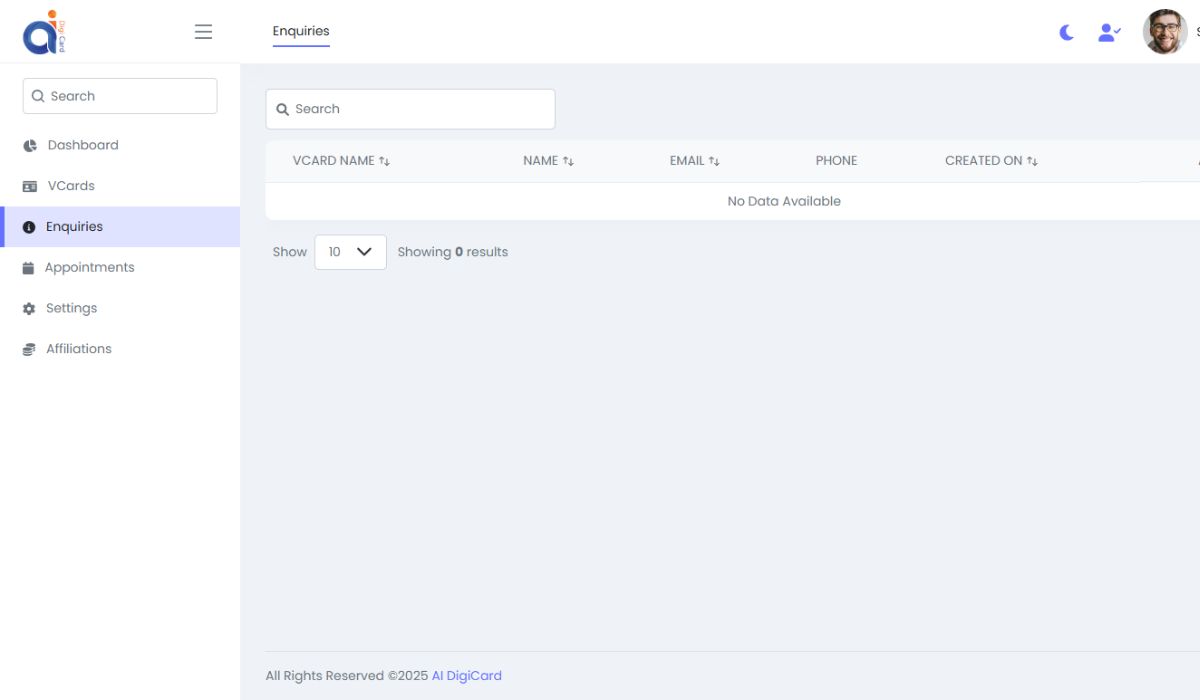
Check all enquiries received from your VCard.
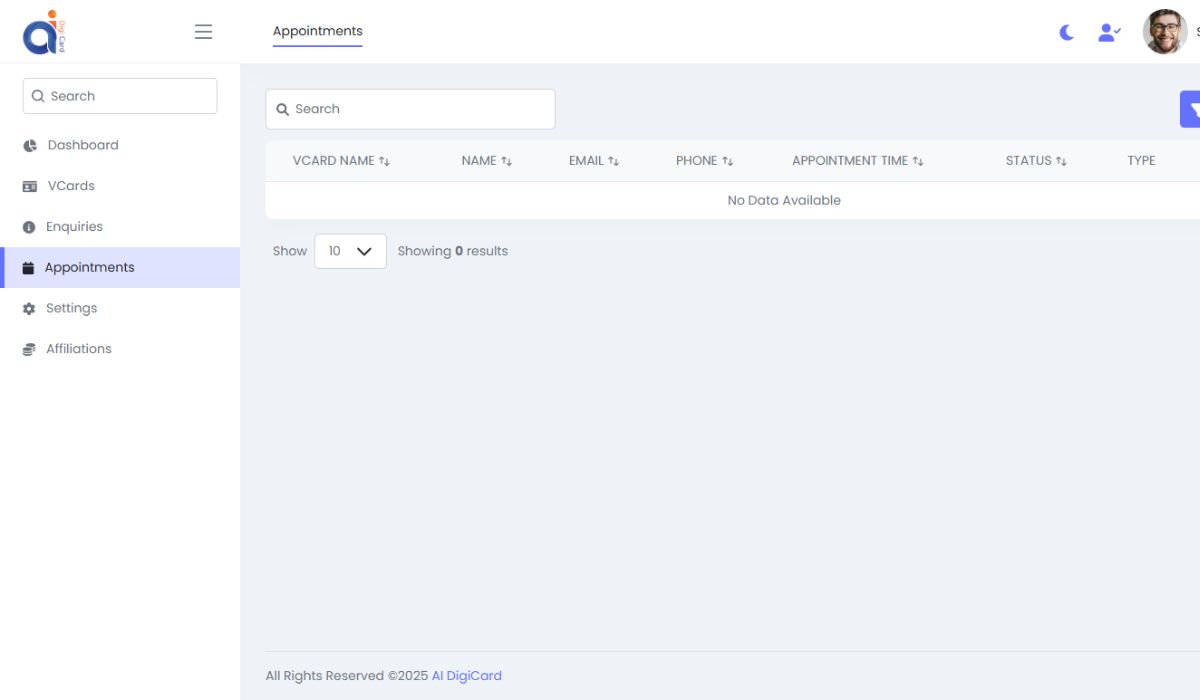
View and manage all scheduled appointments.
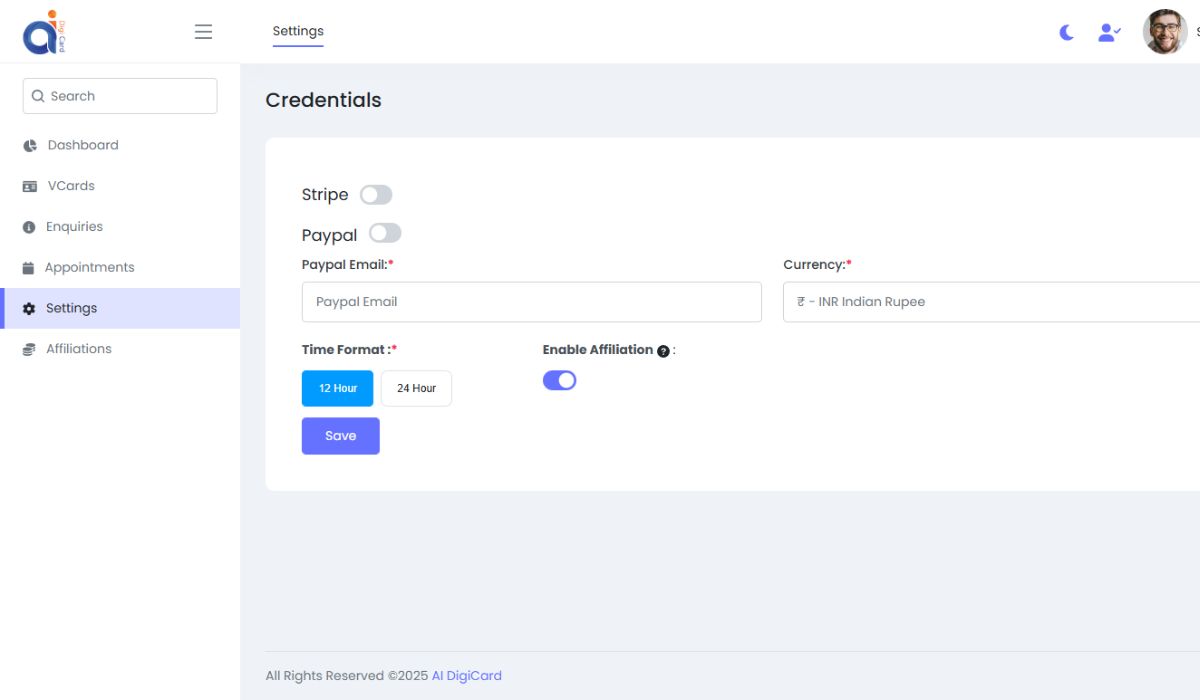
Inside settings you can:
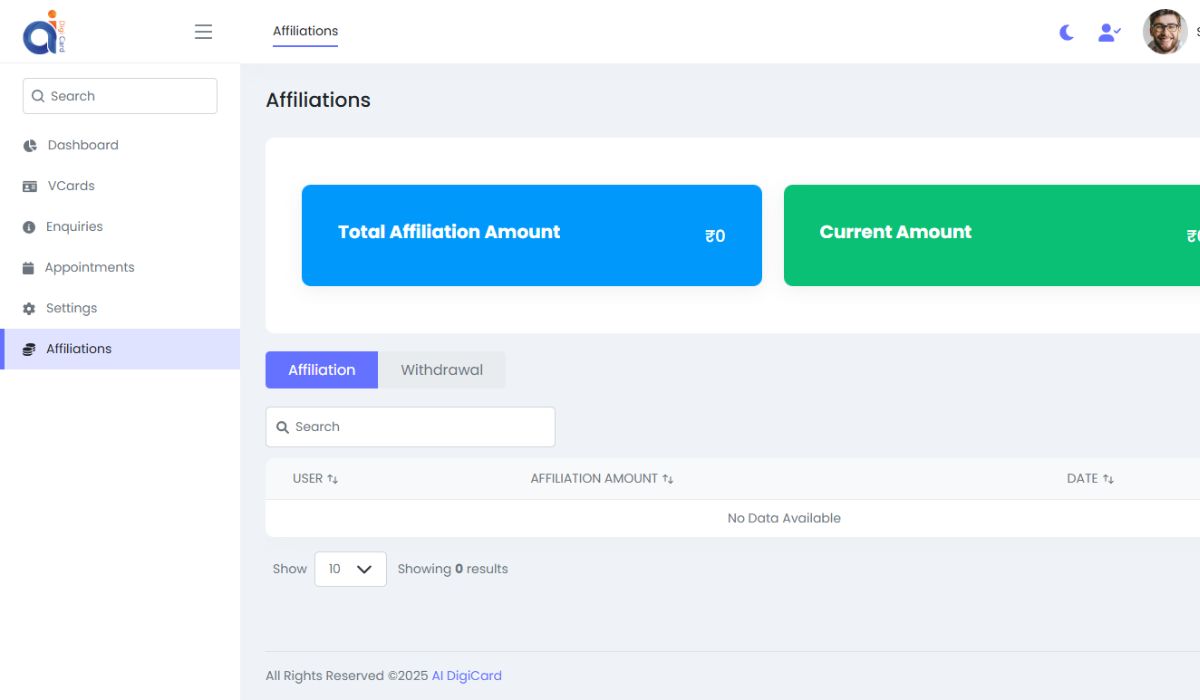
Monitor:
If you need an NFC card, contact us:
🕒 Monday to Saturday, 10 AM – 7 PM